Getting started
When you first start up the Freezer Book V3 application it will need to do some house-keeping. It will need a folder somewhere to keep the details of your freezer(s) and its(their) contents; by default this folder will be called Freezer book V3.0 and, again by default, it will be placed in C:\ProgramData\MikeSoft\ folder. Naturally enough the first time the app runs it will not be able to find this folder so it will ask if you want to create it. If you are happy with that then click Yes but if you want to put the freezer book details somewhere else then click No and it will then ask you if you want to choose somewhere straight away. If you're not ready to choose then click No and the app will close. Then you just need to start it up again when you are ready. If you do have somewhere in mind then go ahead and click Yes and it will give you a Browse For Folder dialog box - navigate to where-ever it is that you want to place it and then click the Make New Folder button and fill in the name you have chosen to keep your freezer book files in, press Enter to fix your new folder and then click Ok. This will keep the Freezer Book V3 app happy but read the next paragraph before you do this.
Most people, probably, won't care where the folder is but if, like us, you have more than one PC on which you want to have access to your freezer book you can share the details by sharing a folder on one of your PCs. You could use Google Drive, Microsoft OneDrive or Dropbox or what-ever but that would seriously affect the locking mechanism. When you start up the Freezer Book V3 application for the first time on one of your PCs make sure that you change folder to your chosen shared folder and create the My Freezer Book Items V3 folder there. Then, when you install and start the Freezer Book V3 application on the other PCs you won't need to create the folder; just navigate to it.
If you have already gone down a route which you later regret you can change your mind using the change folder facility.
Lastly you will be invited to define a nickname for your computer. This defaults to your computer's name however if you have more than one computer which will have access to the freezer book then the locking mechanism will warn the other users when you have the inventory file open so, if you would like to set another name which is more meaningfull to those users then here's your chance.
The first time you run the application, after you have completed all of the housekeeping, you should see:
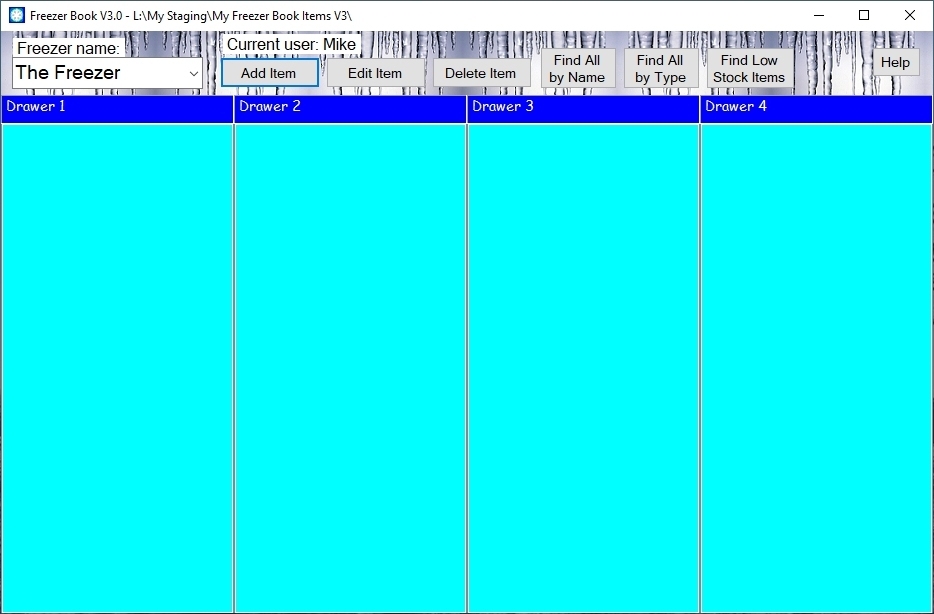
This is an empty default freezer called The Freezer which is an upright freezer with four drawers. If your freezer is a chest freezer or if it doesn't have four food containers then you can edit the freezer specification.
Right click on the box which has the freezer's name in it which is, in this case, The Freezer.
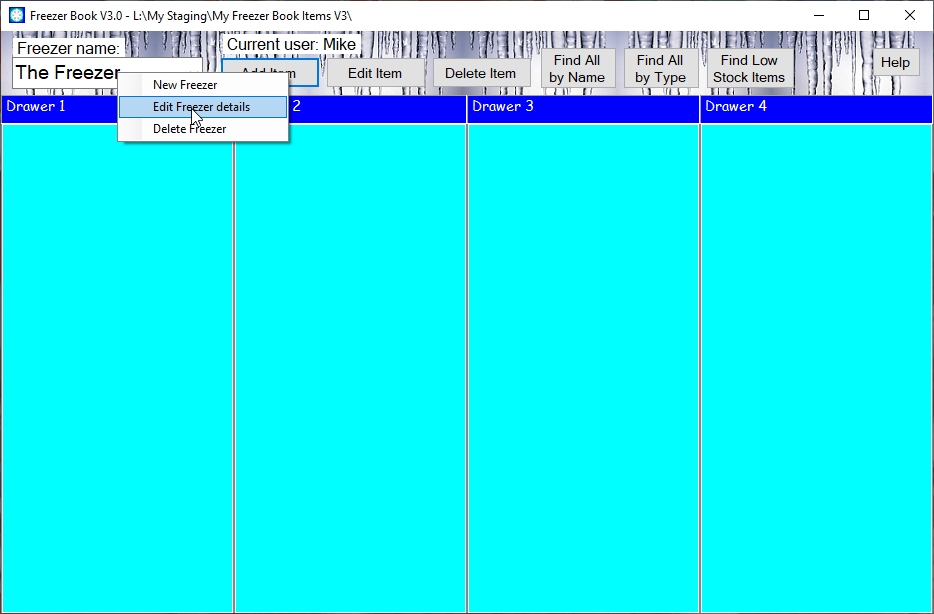
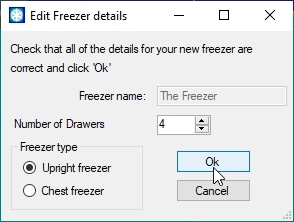
and choose Edit Freezer details this will result in an Edit Freezer details dialog box which will allow you to define the number of drawers and whether it is a chest freezer or an upright one.As soon as you click OK the freezer book application will redraw itself to reflect your changes.
All you need to do now is go to your freezer, make a list of everything in it and which drawer or basket the items are in and then enter it into the application. You can do this using the Add item function.
Click here to return to where you were.
Note. Where ever you see this symbolhover your mouse pointer over it to get more information.